
Changing Text & Images
Most of what you’ll do here is change words and pictures. Both work the same way: you describe what you want, the AI shows you the change, you approve it. Here are real examples to copy.
#Changing text
You don’t need to know which page the text is on. Just describe it.
Opening hours:
“Change Tuesday’s hours to 11 to 9.”
A menu or service:
“Remove the Margherita pizza from today’s menu.” “Add ‘Teeth whitening — $199’ to the services page.”
Contact details:
“Update the phone number everywhere it appears to 555-0142.”
That last one is worth noting: if the same detail shows up on several pages, the AI finds all of them. You don’t have to hunt them down.
Fixing a typo or rewording:
“On the about page, change ‘family owned since 1985’ to ‘family owned since 1987.’”
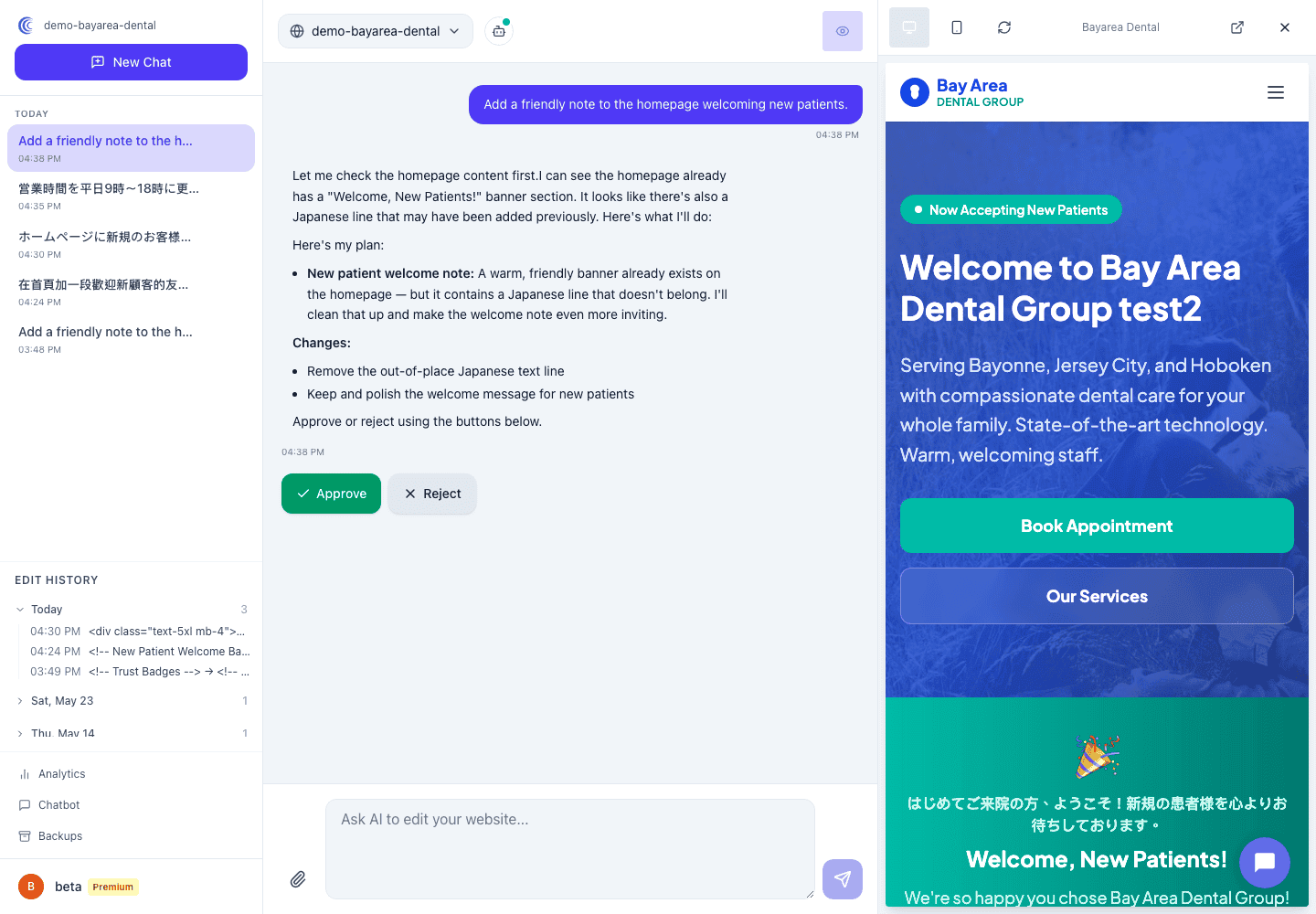
#Swapping a photo
To change an image, attach the new photo right in the chat and tell the AI where it goes.
- Click the attach (paperclip) button in the message box and pick your photo.
- Type where it should go: “Use this as the new homepage photo.”
- The AI places the image and shows you the result before it’s live.
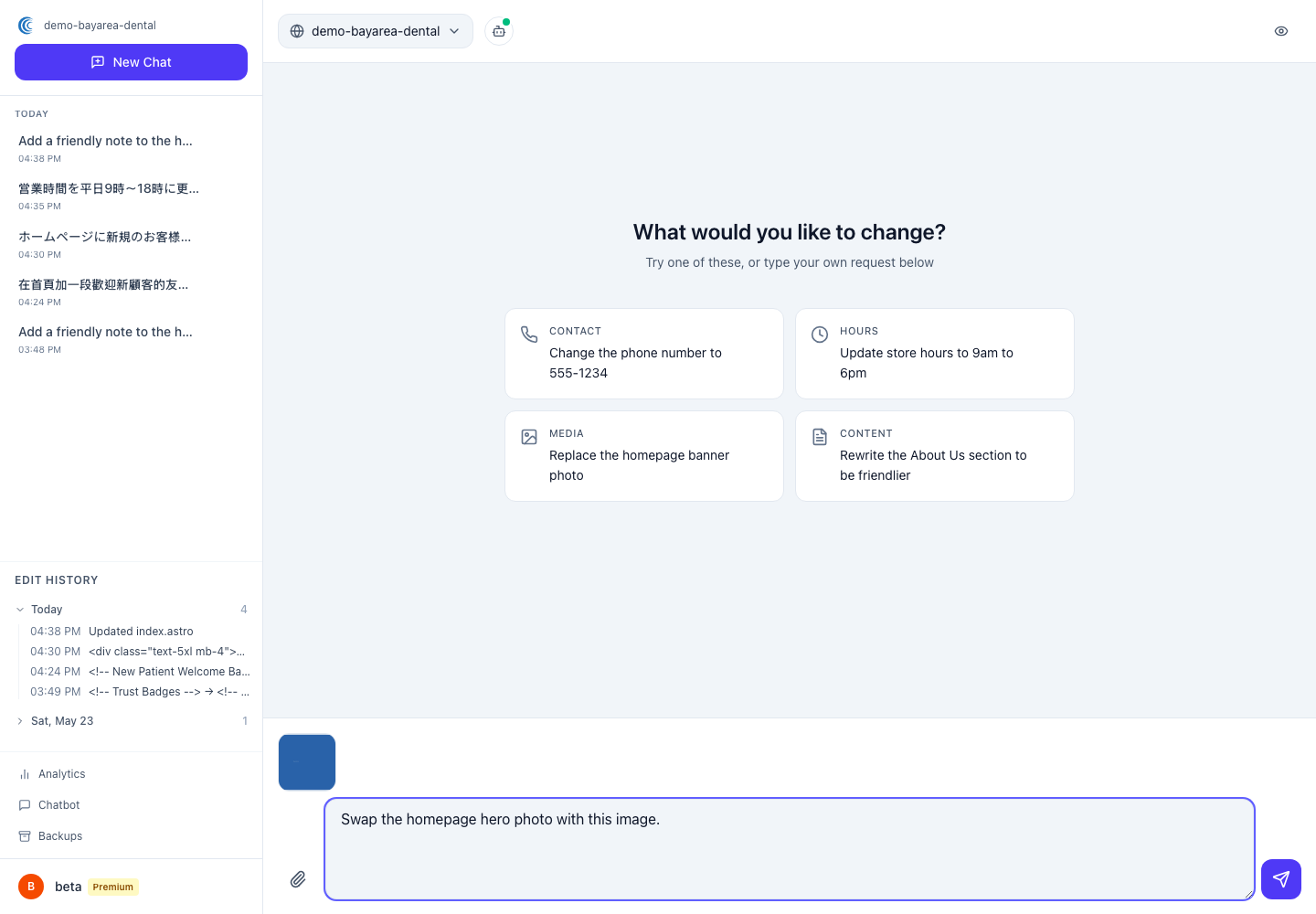
You can attach up to five images in one message. Good photos help — bright, in focus, and large enough that they don’t look fuzzy on a big screen.
#Tips for clear requests
- Be specific about what, not where. “Change the soup of the day to tomato basil” works better than “edit page 2.”
- One thing at a time is easiest, but you can bundle related changes: “Update Tuesday hours to 11–9 and mark the soup sold out.”
- If the result isn’t right, just say so. “No, keep the old photo on the about page” — the AI adjusts.
#Remember
Every text or image change is previewed and waits for your approval before it goes live. Want the details on that step? See Reviewing & Approving AI Changes.