
How the AI Chat Works
The chat is how you do everything here. It works like a conversation, not like software. Here’s the mental model — once you have it, the whole product makes sense.
#The four steps
#1. You ask, in plain language
Type what you want changed the way you’d say it out loud:
“Add a note to the homepage that we’re closed July 4th.”
No special words, no menus. If a human would understand it, the AI will too.
#2. The AI proposes a change
The AI reads your site, figures out what to do, and writes back a short plain-English summary: here’s what I’ll change, and here’s where. It does not touch your live site yet.
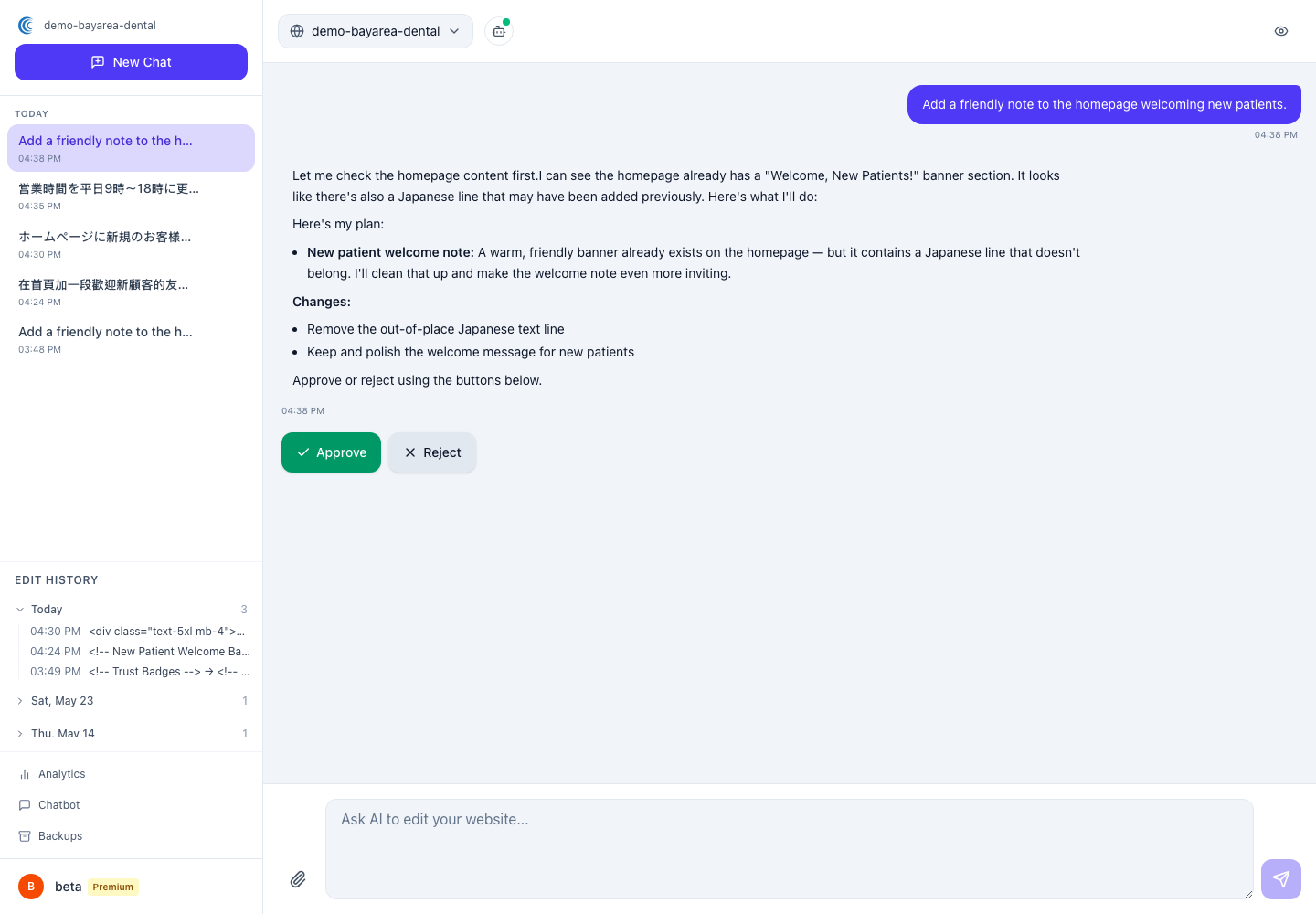
#3. You preview and approve
You look it over. If it’s right, you approve it — usually just by typing yes. If it’s not quite right, you say what to fix:
“Keep it, but say closed July 4th and 5th.”
A new plan comes back. You can go back and forth as many times as you need until it’s exactly right.
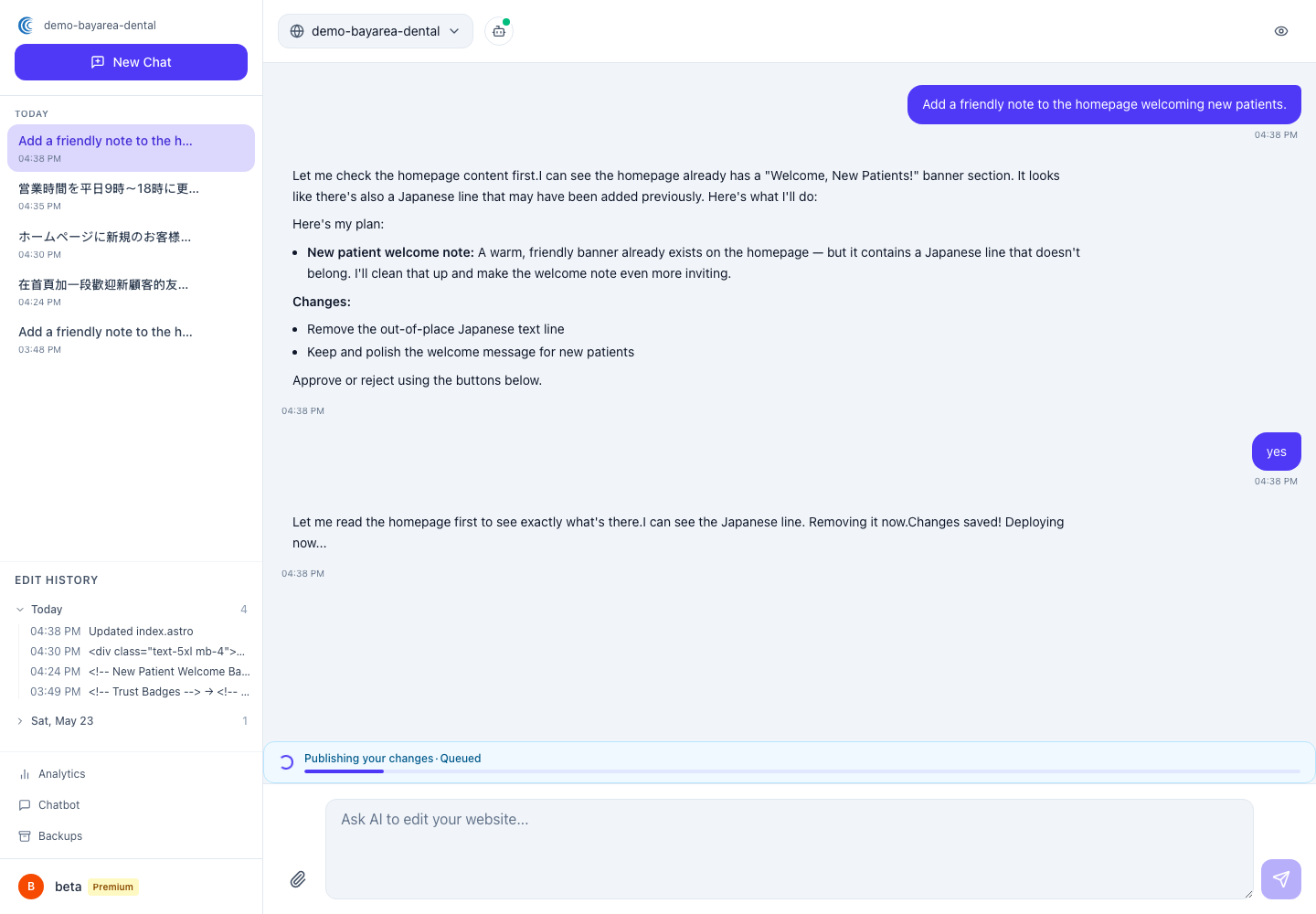
#4. It goes live
Once you approve, the change publishes. You’ll see the progress right in the chat, and within seconds your visitors see the updated site.
#The most important thing to know
Nothing changes on your live site without your approval. Every edit waits for you. If you never approve it, it never happens. There’s no way to accidentally publish something — the approval step is built into how it works, not an option you can forget to turn on.
#A few handy shortcuts
You can type these in the chat any time:
/preview— open a live preview of your site next to the chat/undo— reverse the last change/history— see your recent edits/help— get a quick reminder of what you can do
#If you make a mistake
You can’t really break anything. Every change is saved, and you can roll back to a previous version with one click. Worried about a bigger change? Read Reviewing & Approving AI Changes.