
Connecting Google Analytics
Your dashboard already shows visitor counts on its own. But if you connect Google Analytics, you unlock the Engagement view — which pages people actually read, how long they stay, and which content keeps them around. If you already have a Google Analytics account, connecting takes about two minutes.
Connecting Google Analytics is available on Professional and Premium plans.
#Before you start
You’ll need a Google account that already has access to your site’s Google Analytics 4 (GA4) property. If you’re not sure whether you have GA4 set up, that’s a question for whoever built or manages your analytics — connecting here doesn’t create analytics, it links to what you already have.
#Step 1 — Open Integrations
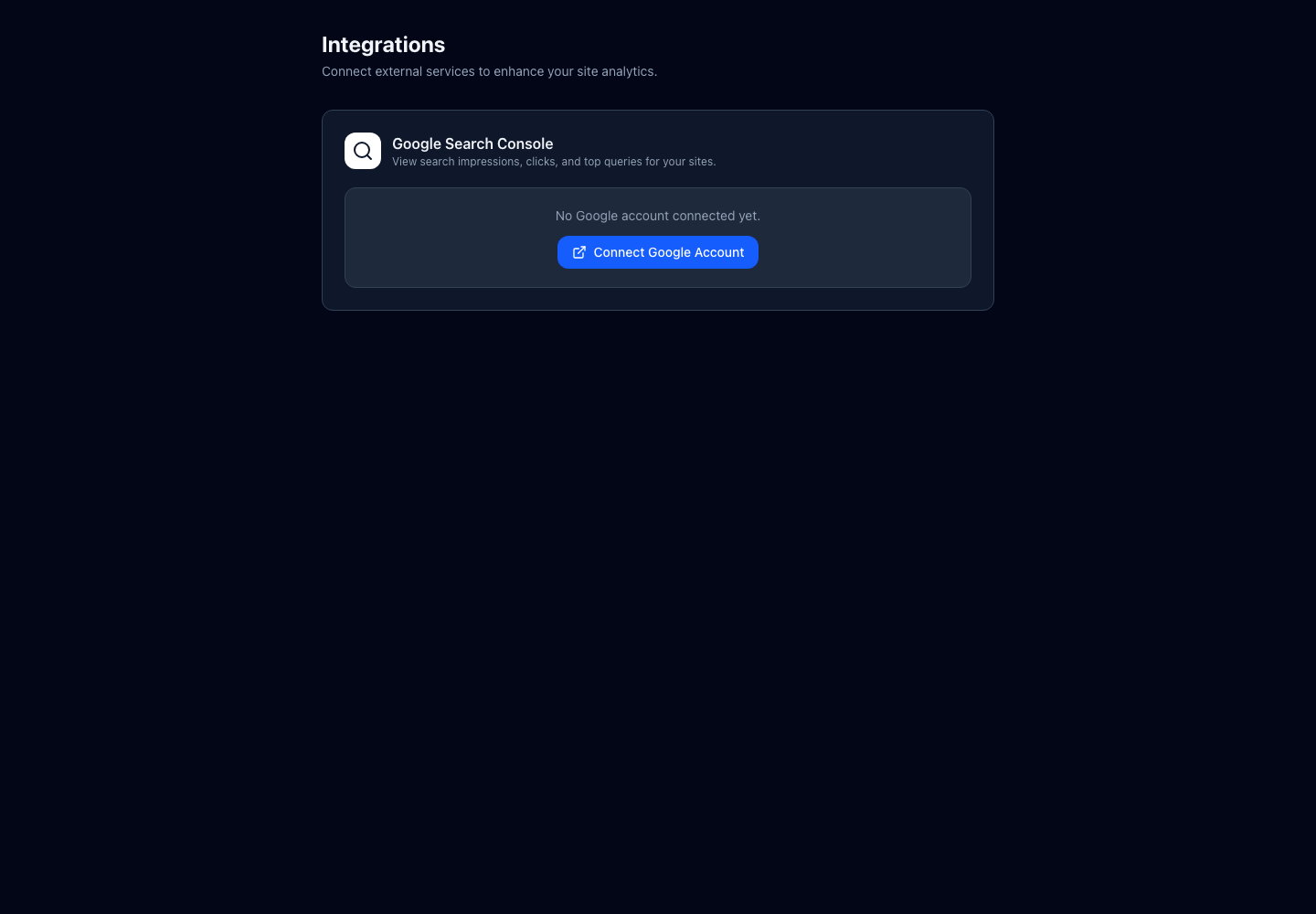
In your dashboard, go to Settings → Integrations. You’ll see a section for Google services.
#Step 2 — Connect your Google account
Click Connect Google Account. A Google sign-in window opens. Sign in and approve the permissions Google asks for — these let us read your analytics data, nothing more. When it’s done, you’ll come back to the Integrations page and see your Google email listed.
#Step 3 — Pick the property for your site
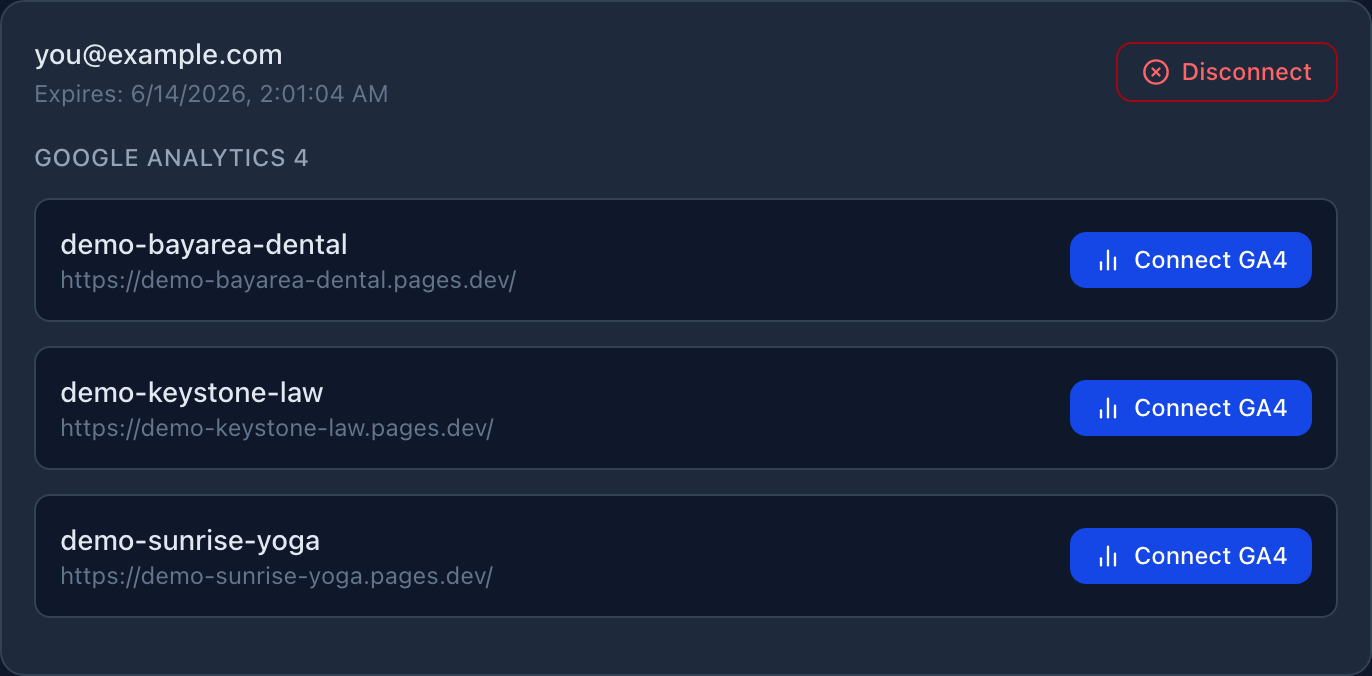
Below your connected Google account, each of your sites has a Connect button. Click it, and we’ll load the Google Analytics properties your account can see. Choose the one that matches this site from the dropdown.
If your site lives on a sub-path (for example, yoursite.com/restaurant), there’s an optional path filter box — we usually fill this in for you automatically. You can leave it as-is unless you know you need to change it.
#Step 4 — Save
Click Save. You’ll see a green “Connected” confirmation. That’s it.
#When will I see data?
The Engagement view on your dashboard will start showing your Google Analytics data right away for the last 30 days. Open your dashboard, go to the Overview or Engagement view, and you’ll see pages, time-on-page, and engagement figures pulled straight from your own analytics.
#Disconnecting
Changed your mind? On the same Integrations page, click Disconnect next to the site (or next to the whole Google account). Nothing on your live website changes — you’re only unlinking the data feed.