
Account & Profile Settings
Your account settings are where you manage who you are and how you sign in. None of it is technical — it’s the same kind of thing you’d find in any online account. Open Settings in your dashboard to get started.
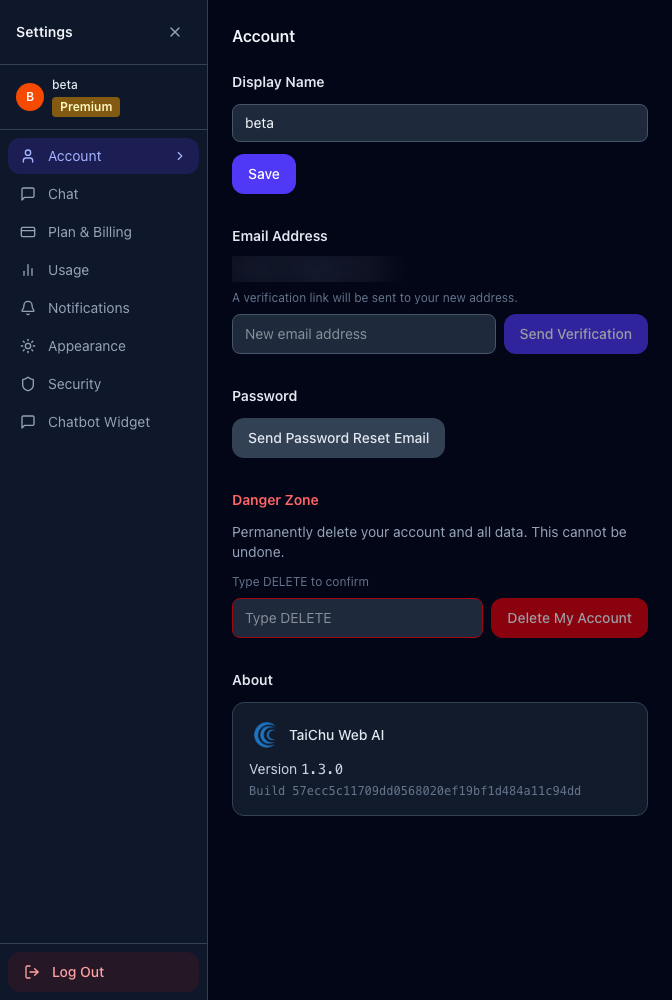
#Your name and email
On the Account tab:
- Display name — type a new name and click Save. This is how you’re shown in the app.
- Email — to change the email on your account, enter the new address and confirm. We’ll email the new address with a link to confirm; the change takes effect once you click it. This keeps your account safe if someone mistypes.
#Changing your password
Also on the Account tab, click Reset password. We send a secure link to your email — open it and choose a new password there. We do this by email on purpose, so a password can only be changed by someone who can read your inbox.
#Extra login security (two-factor)
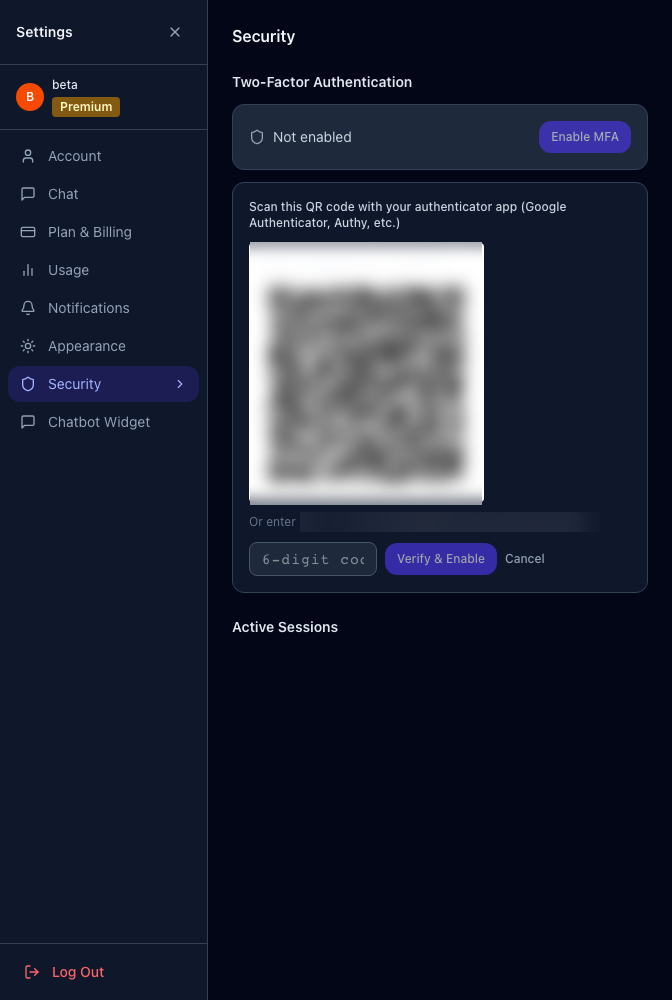
On the Security tab you can turn on two-factor authentication. This means that after your password, you also enter a 6-digit code from an app on your phone (like Google Authenticator or Authy) — so even if someone learned your password, they still couldn’t get in.
To set it up, click Enable, scan the QR code with your authenticator app, and enter the code it shows. We recommend it if more than one person knows your login.
#Where you’re signed in
The Security tab also lists the devices currently signed in to your account. If you see one you don’t recognize, or you signed in on a shared computer, click Sign out other sessions to log everyone else out instantly.
#Appearance and language
On the Appearance tab you can switch between light and dark mode and change your language. These only affect how the dashboard looks for you — nothing on your live website.
#Adding other people to your account
Right now, additional team members are added for you. If you’d like a colleague to have access to your site, email [email protected] and we’ll set them up.
#Closing your account
If you ever need to close your account, there’s a Danger zone at the bottom of the Account tab. Closing it cancels any active subscription and permanently deletes your data, so it asks you to type “DELETE” to confirm. This can’t be undone — if you’re unsure, email support first.