
Acting on AI Recommendations
The best part of your dashboard isn’t the numbers — it’s the to-do list underneath them. The AI looks at your site and points out specific things worth improving, sorted so the highest-impact items are at the top. Each one shows how many points it would add to your score, so you can see what’s worth your time at a glance.
AI Insights are part of the Professional and Premium plans.
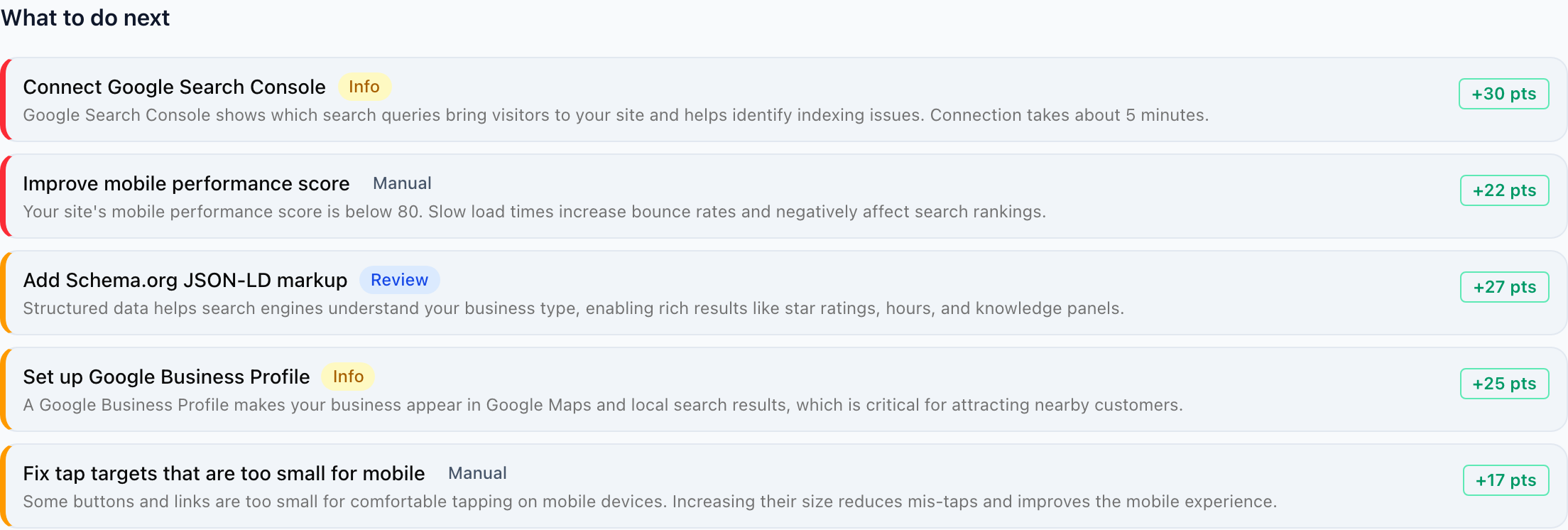
#What the recommendations look like
Each item names a real, concrete issue in plain language — “This page is missing a description for search engines,” “An image on your homepage is slowing the page down,” “A link points to a page that no longer exists.” They’re sorted by priority, and each carries a +N pts badge — the boost to your site score once it’s handled.
#The labels you’ll see
Next to each item is a small label telling you how involved that fix is, so you know what to expect before you start:
- Auto-fix — a straightforward change the AI can make quickly.
- Review — a change worth looking over first, so you can check the result before it goes live.
- Manual — something only you can decide, like rewriting your own copy. The recommendation explains what to change; the call is yours.
- Watch — a monitored item that needs no action from you right now (for example, an SSL certificate that renews on its own). These sit in a collapsible Watch list at the bottom.
- Info — a setup step or piece of guidance, like connecting Google Search Console.
The labels are signposts, not buttons — they tell you the kind of work each item involves.
#How to make a change
The dashboard tells you what to improve; the chat is where you make it happen. Open the chat for your site and describe the change in your own words — you can lift the recommendation almost word for word:
“The dashboard says my homepage is missing a description for search engines. Add one.”
The AI makes the edit and shows you the result. For anything you’d like to see before it’s published, ask it to show you a preview first, then go live only when it looks right. Info items like connecting Google Search Console are quick steps in your Settings rather than chat.
#What if a change isn’t right?
Every change keeps a backup, so you’re never stuck — daily backups and one-click rollback are included on every plan. If something doesn’t look right after it’s live, roll it back from your edit history with one click. And whenever you want to be sure first, ask the AI to preview the change before it publishes.